
Home / Instructions
Introduction
PGAnywhere is a desktop virtualization technology which allows you to remotely access the firm's systems from any computer (PC/Mac) or mobile device (iOS/Android) that is connected to the internet. This landing page provides you all information you need in order to use PGAnywhere.
Access your virtual desktop via Windows App
The recommended way to access your virtual desktop is via Windows App. The Windows App is available for download for various operating systems.
Please refer to the Instructions Section for download links and guidance.
Contact IT Service Desk
Feel free to contact our global IT Service Desk in case of any questions or issues:
Email: [email protected] / Phone: +41 41 784 7777
Instructions
Windows (Azure Virtual Desktop)
The recommended way to access your virtual desktop is via Windows App Client. The Client is available for download for various operating systems.
| Client Type | Download/Access URL |
|---|---|
| Windows | https://apps.microsoft.com/detail/9N1F85V9T8BN |
| Mac OS | https://apps.apple.com/app/microsoft-remote-desktop/id1295203466?mt=12 |
| Web / Browser | https://windows.cloud.microsoft/ |
Login instructions
| Step | Description |
|---|---|
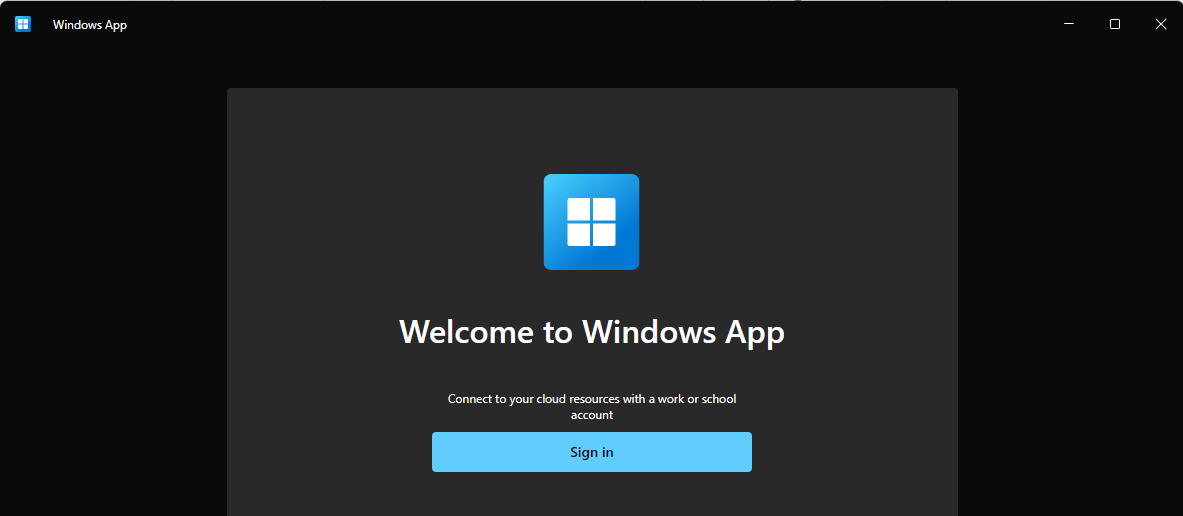
| 1 | Run the Windows App Client and click on "Sign in" |
| 2 | Enter your credentials (email address & password) and provide multifactor authentication |
| 3 | Connect to your virtual desktop |
Linux (AWS Workspaces)
| Access type | URL | Registration Code |
|---|---|---|
| Client | Coming soon | Coming soon |